Import a Clickwise feed into WooCommerce with WP All Import
Updated: 2026-09-30.
1. What this guide covers
Clickwise delivers per-market product feeds (Google Shopping RSS/XML schema) for affiliates approved on a program. Each item carries a GTIN, title, description, price with currency, image, availability and a commission-tracked purchase link. This guide shows how to turn that feed into WooCommerce External/Affiliate products: catalogue pages on your own site whose "Buy" button sends the visitor to the merchant through the tracked link, with no cart, no checkout and no inventory on your side.
The tool used is WP All Import Pro plus the WooCommerce Add-On Pro (both by Soflyy). The free editions on WordPress.org can upload a file and create Simple products, which is useful for a first look at the feed, but they cannot create External/Affiliate products, cannot download from a URL and cannot run on a schedule. Those three capabilities are exactly what a live affiliate catalogue needs, so the Pro editions are a hard requirement for the target flow.
What this guide does not cover: Google Merchant Center or Microsoft Merchant Center submission (the Clickwise feed page covers those separately), multi-currency stores, variable products, and custom PHP in templates beyond one optional example.
2. Requirements
| Component | Minimum for this flow | Notes |
|---|---|---|
| WordPress | Current release (local test: 6.8.3) | HTTPS site with a stable public URL. |
| WooCommerce | 9.2 or newer (local test: 9.9.5) | 9.2 introduced the native "GTIN, UPC, EAN or ISBN" product field, stored as global_unique_id. |
| PHP | 7.4 or newer | Requirement stated by the add-on. |
| WP All Import Pro | Current release | Needed for "Download a file › From URL" and for scheduled/recurring imports. The free edition (4.1.1) shows an upgrade banner on both. |
| WP All Import WooCommerce Add-On Pro | Current release (free edition 1.5.5 tested) | Needed for the External/Affiliate product type. The free add-on lists "Import External/Affiliate products", "Import files from a URL" and "Cron Job/Recurring Imports" as Pro features and disables the external fields. |
| Server cron access, or the WP All Import Automatic Scheduling service | One of the two | The trigger/processing URLs must be hit on a schedule from outside WordPress. |
| Store currency | Same currency as the feed you requested | Mapping a price does not automatically convert the feed currency. A US feed is priced in USD; set WooCommerce › Settings › General › Currency to USD. |
| Clickwise affiliate account | Approved on at least one program | Entitlement to feeds is automatic once approved. |
Do not mix editions: if the free WP All Import or free add-on is active, deactivate and remove it before installing the Pro edition (the upgrade banner says the same).
3. Getting your Clickwise feed
- Sign up as an affiliate at https://partners.clickwise.net/en/signup_affiliate/. During signup indicate the market (country), the category and the format you want. Choose XML for WP All Import (TSV, CSV and JSON exist but XML keeps the field names shown in this guide).
- Program approval. Feeds are built from programs you are approved on. Apply to the programs whose products you want to list; approval is decided per program by the advertiser or network.
- Entitlement and signed URL. Approved affiliates automatically receive entitlement to the eligible feeds. The signed URL arrives by email. It is personal: it embeds your affiliate identity and the tracking parameters that pay you.
- Expiry and renewal. A signed URL expires after 90 days. Renewal is automatic: each service tick checks your delivery and renews it when due, as long as your eligibility on the program continues. A recent delivery may keep its current URL. Always use the current URL from the most recent email; when a renewal email arrives, paste the new URL into your import (section 7.4).
- Program rules. Every program has a
terms_summaryin your panel: permitted markets, channels and uses. Downloading the feed counts as accepting the network terms of every program the feed contains, plus the Clickwise affiliate terms. The summary is a convenience; it does not replace the terms. - Acceptance is recorded on download. The first complete GET of the file is recorded as acceptance (download counter and timestamp).
HEADrequests and304 Not Modifiedresponses do not count as new downloads.
Security rules for this URL:
- Never paste the signed URL in screenshots, tickets, forum posts or documentation. Treat it like a password.
- Do not share a personal feed URL with another affiliate; its entitlement and tracked links belong to the approved account.
- If a URL leaks, contact Clickwise to replace the delivery URL.
3.1 Rehearse with the public sample
Before using your personal signed URL, you can rehearse the whole flow with https://partners.clickwise.net/feeds/guide/sample.xml. You can also download CSV, TSV or JSON from the public feed page. Use XML to follow the field names in this guide.
The sample contains three fictional products, checksum-valid GTINs and example.invalid links: nothing is tracked or sold. It has the same structure as a real feed. In Pro, choose Download a file › From URL and paste the sample URL. In the free edition, download the file and use Upload a file.
The screenshots show a free-edition rehearsal with three fictional products and the same field structure. Use the public sample linked above for your own rehearsal.
4. Understanding the feed before you map it
4.1 Structure
This is the complete public sample, including all three items; only indentation has been added. The XML is an RSS 2.0 document with the Google Merchant namespace. This sample uses example.invalid links, with no purchases or real tracking:
<?xml version='1.0' encoding='utf-8'?>
<rss xmlns:g="http://base.google.com/ns/1.0" version="2.0">
 <channel>
  <title>Clickwise GTIN feed</title>
  <link>https://partners.clickwise.net/feeds/</link>
  <description>Authorized product offers with tracked affiliate links.</description>
  <item>
   <g:id>cw-gtin-demo-one</g:id>
   <title>Demo One</title>
   <description>Fictional sample product: Demo One.</description>
   <link>https://example.invalid/dl/demo-one/?sub_id=feed_demo_us</link>
   <g:image_link>https://partners.clickwise.net/static/images/clickwiselogo.png</g:image_link>
   <g:availability>in_stock</g:availability>
   <g:price>19.90 USD</g:price>
   <g:brand>Demo Brand</g:brand>
   <g:gtin>0000000000017</g:gtin>
   <g:identifier_exists>true</g:identifier_exists>
   <g:condition>new</g:condition>
   <g:product_type>Demo products</g:product_type>
   <g:custom_label_0>Demo Shop</g:custom_label_0>
   <g:custom_label_1>Demo Network</g:custom_label_1>
   <g:custom_label_2>US</g:custom_label_2>
   <g:seller_name>Demo Shop</g:seller_name>
   <g:ads_redirect>https://example.invalid/dl/demo-one/?sub_id=feed_demo_us</g:ads_redirect>
  </item>
  <item>
   <g:id>cw-gtin-demo-two</g:id>
   <title>Demo Two</title>
   <description>Fictional sample product: Demo Two.</description>
   <link>https://example.invalid/dl/demo-two/?sub_id=feed_demo_us</link>
   <g:image_link>https://partners.clickwise.net/static/images/clickwiselogo.png</g:image_link>
   <g:availability>in_stock</g:availability>
   <g:price>29.90 USD</g:price>
   <g:brand>Demo Brand</g:brand>
   <g:gtin>0000000000024</g:gtin>
   <g:identifier_exists>true</g:identifier_exists>
   <g:condition>new</g:condition>
   <g:product_type>Demo products</g:product_type>
   <g:custom_label_0>Demo Shop</g:custom_label_0>
   <g:custom_label_1>Demo Network</g:custom_label_1>
   <g:custom_label_2>US</g:custom_label_2>
   <g:seller_name>Demo Shop</g:seller_name>
   <g:ads_redirect>https://example.invalid/dl/demo-two/?sub_id=feed_demo_us</g:ads_redirect>
  </item>
  <item>
   <g:id>cw-gtin-demo-three</g:id>
   <title>Demo Three</title>
   <description>Fictional sample product: Demo Three.</description>
   <link>https://example.invalid/dl/demo-three/?sub_id=feed_demo_us</link>
   <g:image_link>https://partners.clickwise.net/static/images/clickwiselogo.png</g:image_link>
   <g:availability>out_of_stock</g:availability>
   <g:price>39.90 USD</g:price>
   <g:brand>Demo Brand</g:brand>
   <g:gtin>0000000000031</g:gtin>
   <g:identifier_exists>true</g:identifier_exists>
   <g:condition>new</g:condition>
   <g:product_type>Demo products</g:product_type>
   <g:custom_label_0>Demo Shop</g:custom_label_0>
   <g:custom_label_1>Demo Network</g:custom_label_1>
   <g:custom_label_2>US</g:custom_label_2>
   <g:seller_name>Demo Shop</g:seller_name>
   <g:ads_redirect>https://example.invalid/dl/demo-three/?sub_id=feed_demo_us</g:ads_redirect>
  </item>
 </channel>
</rss>
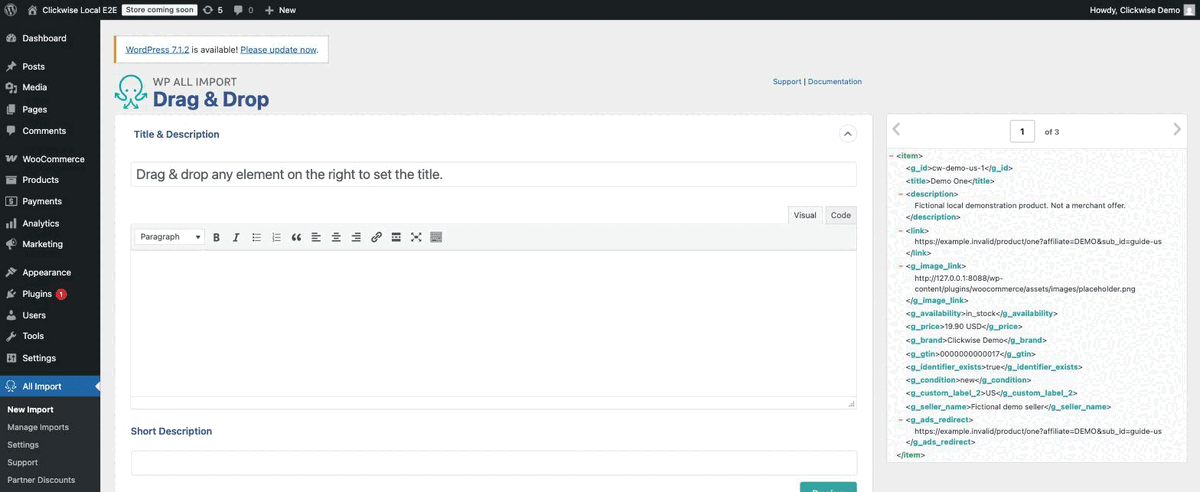
The record element is item, path /rss/channel/item. Three elements have no prefix: title, description, link. Everything else uses the g: prefix.
How WP All Import shows the prefix. WP All Import rewrites namespaced tag names by replacing the colon with an underscore. In the element tree and in templates you will see g_id, g_price, g_gtin, g_image_link, and the placeholders are {g_id[1]}, {g_price[1]}, {g_gtin[1]}, {g_image_link[1]}. Do not type {g:price[1]}; it will not resolve. The screenshot below shows the element tree.
4.2 Field reference
The table lists the elements emitted by the public sample. Empty fields in a real feed are omitted from the item, so a placeholder can resolve to an empty string. Map accordingly. In a real feed, link and g:ads_redirect contain tracked purchase links; in this sample they are fictional example.invalid links.
| Element | Presence in a real feed | Meaning and how to use it |
|---|---|---|
g:id |
yes | Stable offer identifier (cw-gtin-<offer id>). Use it as SKU and as the Unique Identifier of the import. It never changes for the life of the offer. |
title |
yes | Product name, plain text, up to 150 characters. |
description |
yes | Plain-text description, up to 5000 characters. |
link |
yes | The tracked purchase URL. This is the Product URL of the external product (see 4.3). |
g:image_link |
yes | Main image URL (HTTPS). |
g:availability |
yes | One of in_stock, out_of_stock, preorder, backorder. The feed carries availability, never quantities. |
g:price |
yes | NN.NN CCC, two decimals, period as decimal separator, ISO currency code (19.90 USD). |
g:brand |
usually | Brand, up to 70 characters. |
g:gtin |
usually | GTIN as a string, checksum-validated, may start with zeros. Not unique per item when several merchants sell the same product. |
g:identifier_exists |
yes | true when a GTIN (or brand + MPN) is present; false otherwise. |
g:condition |
yes | new, used or refurbished. |
g:product_type |
when non-empty | Merchant category path. |
g:custom_label_0 |
when non-empty | Program name. |
g:custom_label_1 |
when non-empty | Network name. |
g:custom_label_2 |
when non-empty | Country code of the feed (US, DE, ...). |
g:seller_name |
when non-empty | Shop or program name; identifies the actual seller. |
g:ads_redirect |
yes | Tracked deeplink (same as link unless a landing template is in use). |
These elements are absent from the sample, but may appear in your real feed when the following conditions hold:
g:additional_image_link: the source supplies explicit additional images; duplicates are removed and up to 10 are included.g:sale_price: the source supplies a positive sale price below the regular price in the same currency; the rounded value must also remain positive and lower.g:mpn: the offer supplies a non-empty manufacturer part number.g:google_product_category: category resolution returns a Google taxonomy ID.g:item_group_id: the source explicitly supplies a non-empty group identifier.g:shipping: an enriched source supplies a shipping dictionary for the requested country with an exactly zero price; it containsg:countryandg:price.g:clickwise_link:landing_templateis used; it retains the tracked link whilelinkpoints to your page (see 4.3).
There is no SKU element. The merchant's own SKU is not serialized. Use g:id as the SKU on your side and keep the GTIN in the dedicated GTIN field.
4.3 Which URL goes into "Product URL"
The whole point of the flow is that the button on your product page sends the visitor through the tracked link. Never use a merchant landing page URL without tracking, and never edit, shorten or strip parameters from the tracked link.
- Default delivery (no
landing_template):linkis the tracked URL. Map Product URL to{link[1]}.g:ads_redirectcarries the same value. - Delivery with
landing_template: this option exists for Google Merchant Center flows wherelinkmust point to your own claimed domain. In that caselinkpoints to your page and the tracked deeplink moves tog:clickwise_link(andg:ads_redirect). For a WooCommerce affiliate catalogue you do not need a landing template. If your signed URL has one appended, either remove the parameter (use the plain signed URL) or map Product URL to{g_clickwise_link[1]}.
Rule of thumb: Product URL must always resolve to a URL that carries the Clickwise tracking. If in doubt, open one link value from the file in a private window and confirm it goes through the tracking redirect before landing on the merchant.
4.4 Identifiers: what is unique and what is not
g:idis unique per offer and stable across runs. Use it for matching.g:gtinidentifies the product, not the offer. Two merchants in the same feed (or two country feeds) can list the same GTIN. WooCommerce enforces uniqueness of its GTIN field across all products, so a second product with the same GTIN will be rejected by that check. Never use GTIN as the Unique Identifier, and expect GTIN collisions if you import several merchants or markets into one store (see FAQ).- One country feed → one WP All Import import. Do not merge feeds into the same import: the "missing records" logic is evaluated per import file.
5. Step by step: creating the import
Menu path in WordPress: All Import › New Import. Screenshots referenced below were taken on the free editions (WP All Import 4.1.1, WooCommerce Add-On 1.5.5) with a synthetic three-item file; they illustrate the free-edition workflow. Follow the official links for Pro steps.
Step 1 — Source file: Download a file › From URL (Pro)
- Click Download a file, then From URL.
- Paste the current signed feed URL from your Clickwise email and click Download.
- Wait for the download to finish and the file preview to appear.
For a dry run, paste the public sample URL https://partners.clickwise.net/feeds/guide/sample.xml instead of your personal signed URL.
Never take a screenshot of this screen with your real URL in the field.
Pro step This step needs WP All Import Pro. Official instructions: WP All Import
Step 2 — Create or modify: WooCommerce Products
In Create or modify… choose WooCommerce Products. Then:
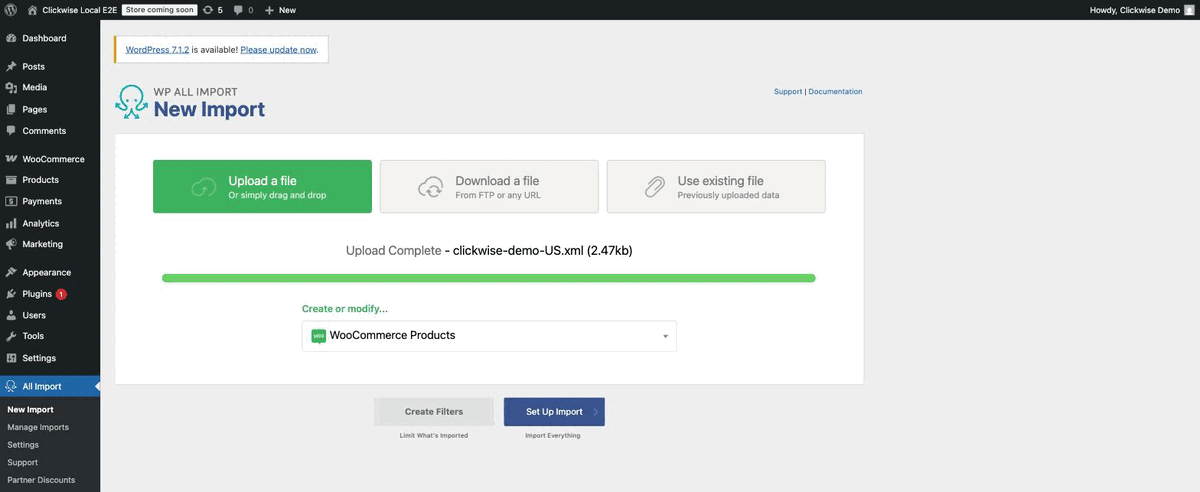
- Set Up Import goes straight to the template (Step 3).
- Create Filters lets you limit which items are imported (section 8.2) before continuing.
WP All Import detects the repeating element automatically. In the local run the record navigator showed "1 of 3" and the confirmation screen said it would "process all 3 <item> records". If the detection ever picks the wrong element, set the XPath to /rss/channel/item.
Step 3 — Template: map the fields
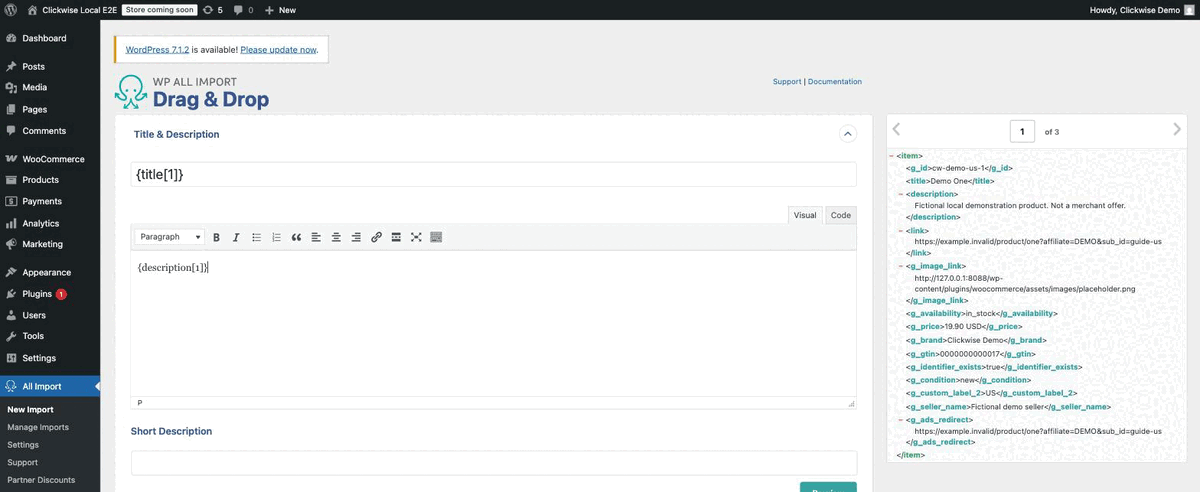
Drag elements from the tree on the right into the fields, or type the placeholders.
Title & Description
| Field | Value |
|---|---|
| Title | {title[1]} |
| Description (content) | {description[1]} |
| Short description | leave empty, or a fixed sentence such as "Sold by {g_seller_name[1]}. Price and availability as of the last feed update." |
WooCommerce Add-On › Product Type
Select External/Affiliate product in the Pro add-on to enable Product URL and Button text.
Pro step This step needs WP All Import Pro. Official instructions: WP All Import
General tab (external fields and price)
| Field | Value | Why |
|---|---|---|
| Product URL | {link[1]} |
The tracked purchase link (see 4.3). |
| Button text | Buy |
Replaces WooCommerce's default "Buy product". Keep it honest: the visitor leaves your site. |
| Regular Price | {g_price[1]} |
Feed value looks like 19.90 USD. |
| Sale Price | {g_sale_price[1]} |
Empty when the feed has no sale price; WooCommerce then shows the regular price only. |
| Remove currency symbols from price | checked (default) | Strips USD so 19.90 USD is stored as 19.9. Verified in the local run: stored 19.9, displayed $19.90. |
| Convert decimal separator to a period | checked (default) | Harmless; the feed already uses a period. |
| Tax status / class | leave defaults | Nothing is sold on your site. |
Do not apply the price adjustment options (percentage or fixed) unless the program rules allow altered prices. Displayed price should match the merchant.
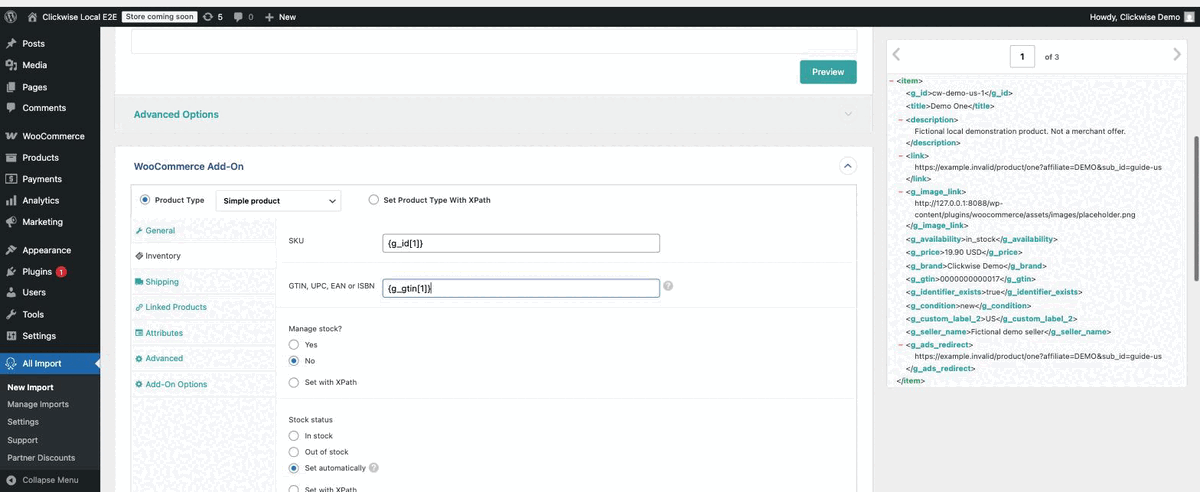
Inventory tab
| Field | Value | Why |
|---|---|---|
| SKU | {g_id[1]} |
Unique per offer, stable, and WooCommerce requires SKUs to be unique. |
| GTIN, UPC, EAN or ISBN | {g_gtin[1]} |
Native WooCommerce 9.2+ field. The XML value is text, so leading zeros survive (0000000000017 was stored intact locally). |
| Manage stock? | No | External products cannot be stock managed; WooCommerce rejects manage_stock = yes for them. |
| Stock status | leave "Set automatically" | See section 8.1: WooCommerce forces external products to In stock. Do not map g_availability here. |
| Stock quantity | leave empty | The feed has no quantities; never invent one. |
Availability as data you can actually use. Because WooCommerce ignores stock status on external products, keep the feed's availability where you can read it:
- Custom Fields section: name
_clickwise_availability, value{g_availability[1]}. - Attributes tab: attribute
Availability, value{g_availability[1]}, "Show in product page" checked, "Is taxonomy" unchecked (or checked if you want to filter by it in the shop). Optionally addSeller={g_seller_name[1]},Brand={g_brand[1]},Condition={g_condition[1]},Country={g_custom_label_2[1]},Program={g_custom_label_0[1]}.
Your theme or a small snippet can then show "Currently unavailable at the merchant" when the attribute is out_of_stock, and "Pre-order" for preorder.
Images section
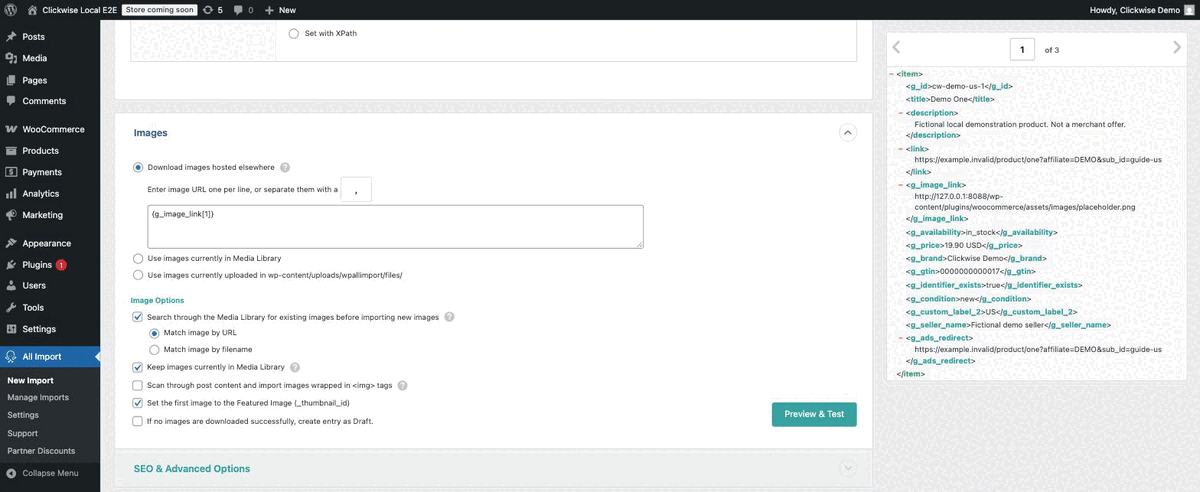
- Select Download images hosted elsewhere.
- In the box, one URL per line or comma-separated:
{g_image_link[1]}. To include gallery images append,{g_additional_image_link[1]},{g_additional_image_link[2]}(empty placeholders are ignored). - Keep Set the first image to the Featured Image checked.
- Keep Search through the Media Library for existing images before importing new images › Match image by URL checked, so re-runs do not download the same image again.
- Leave If no images are downloaded successfully, create entry as Draft unchecked unless you prefer to hide products without images.
The image host is the merchant's CDN. Your server must be able to reach it. A merchant CDN is still untested.
Categories, Taxonomies
Map WooCommerce product categories to {g_product_type[1]} (merchant category path) if present, or to a fixed category per import (for example the category you requested at signup). Use the "hierarchical" option with > as separator if you map g_product_type.
Advanced Options
Use Draft while checking the first import, then publish the offers you have verified. Set the post author if needed.
Step 4 — Import Settings
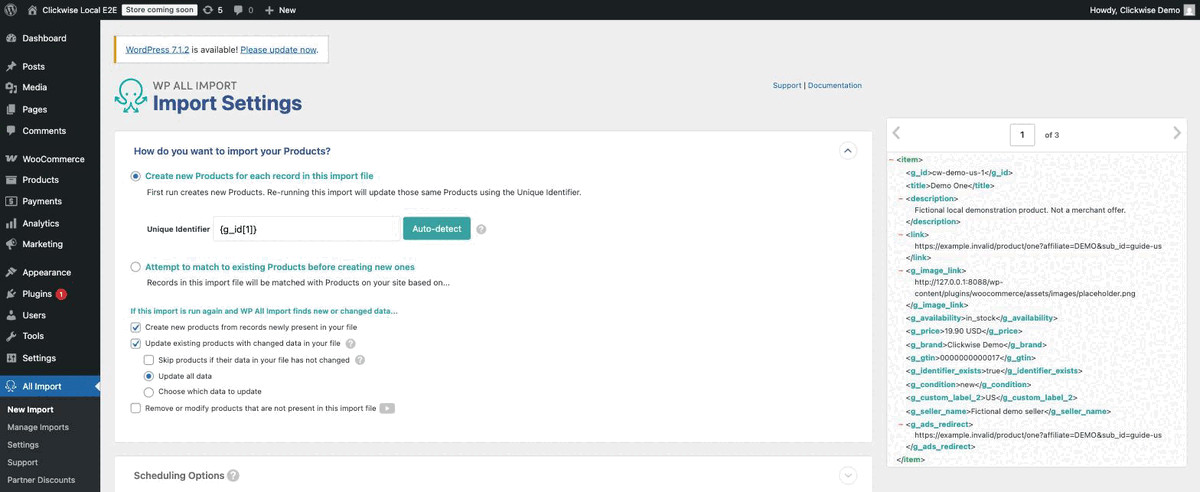
| Setting | Value | Why |
|---|---|---|
| How do you want to import | Create new Products for each record in this import file | First run creates; re-runs update by Unique Identifier. |
| Unique Identifier | {g_id[1]} |
Stable per offer. Do not accept the auto-detected value if it includes the title (the local auto-detect proposed a title + id combination); clear it and type {g_id[1]}. Changing the identifier after the first run causes duplicates, so get it right now. |
| Create new products from records newly present in your file | checked | New offers appear as new products. |
| Update existing products with changed data in your file | checked | Price, availability, link and images follow the feed. |
| Skip products if their data in your file has not changed | checked | Faster runs. |
| Update all data / Choose which data to update | see below | |
| Remove or modify products that are not present in this import file | see section 8.3 | Decide deliberately. |
Choose which data to update. If you edit imported products by hand (SEO copy, extra categories, custom descriptions), select Choose which data to update and tick only the feed-owned fields: product data (prices, product URL and button text), custom fields for _clickwise_availability, attributes, images, and optionally title. Leave content, categories and anything you curate manually unticked. Conversely, never hand-edit fields the feed owns (price, Product URL, SKU, GTIN): the next scheduled run overwrites them.
Scheduling Options: see section 7 (Pro).
Step 5 — Confirm & Run
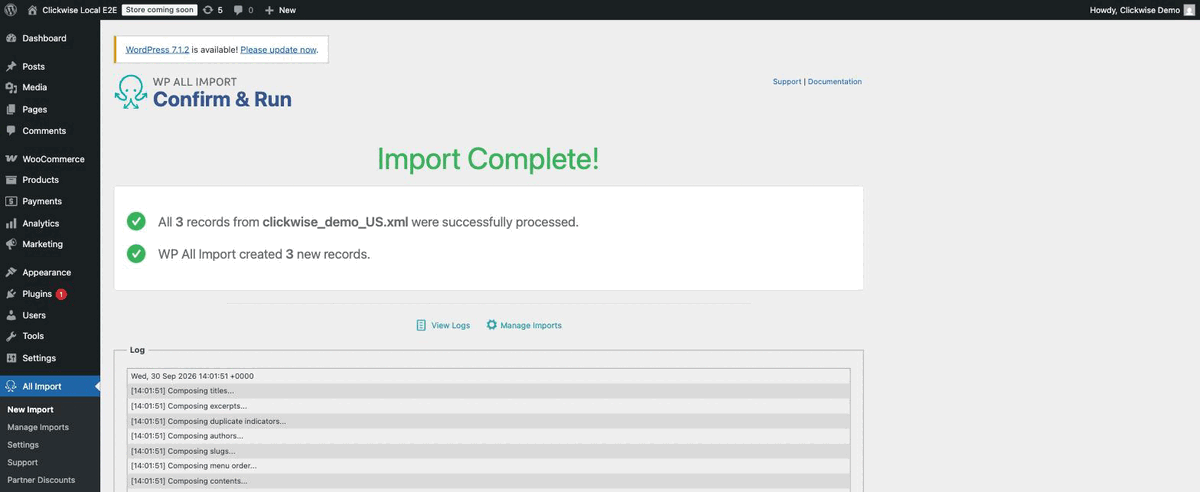
Review the summary and click Confirm & Run Import. WP All Import processes the file in batches and shows an "Import Complete" screen with the number of records created, updated, skipped and deleted. The import is then listed in All Import › Manage Imports with its history log.
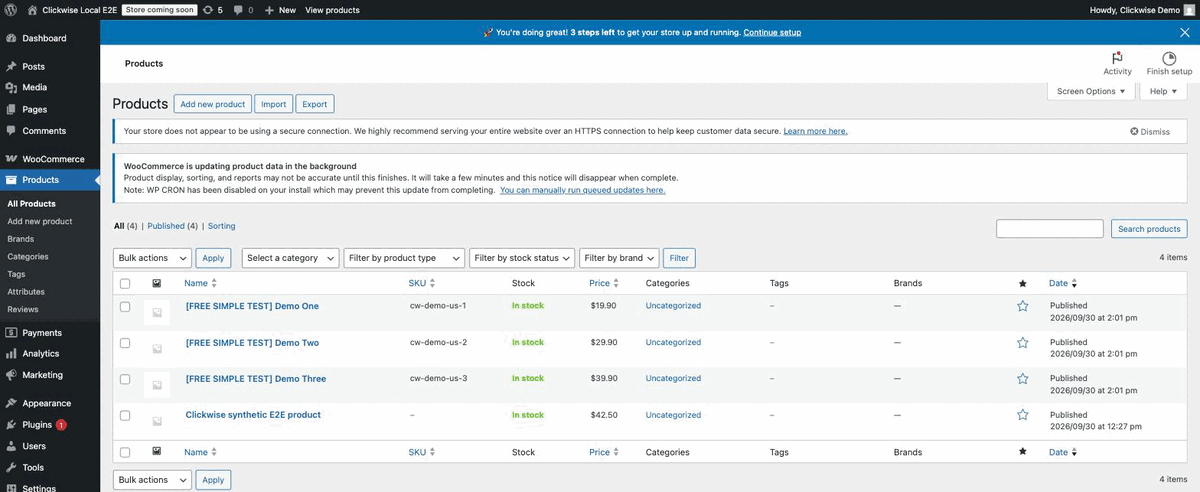
For reference only, the free-edition local test with Simple products created products (three products created, SKUs cw-demo-us-1..3, prices 19.90/29.90/39.90, GTIN stored with leading zeros). Those are not external products and do not validate the Buy button.
Pro step This step needs WP All Import Pro. Official instructions: WP All Import
6. Verifying the result
- Products › All Products: the products exist, type "External/Affiliate", SKU =
g:id, price shown in the store currency. - Product edit screen › Inventory: the GTIN field shows the full code including leading zeros.
- Frontend product page: the button reads "Buy" and its
hrefis the tracked link, unchanged. Hover the button or inspect the HTML. Do not click it from your own IP repeatedly; some programs count that as invalid traffic. - Shop page: external products show the Buy button in the product loop as well (WooCommerce uses the Product URL as the "add to cart" URL for this type).
- Manage Imports › History Logs: no warnings about images or price parsing.
7. Keeping the catalogue updated (Pro)
A feed changes daily: prices, sale prices, availability, new offers, removed offers. The import must re-run on a schedule and re-download the file each time.
7.1 Two ways to schedule
- Automatic Scheduling (an optional paid service from Soflyy): choose frequency, days and times in Manage Imports › Scheduling Options › Automatic Scheduling. No server access needed.
- Manual Scheduling (cron jobs): you create two cron jobs on your server (or any external cron service) that call two URLs.
Both require an import created from Download from URL or Use existing file; an uploaded file cannot be scheduled.
WordPress's own WP-Cron is not a substitute. It only fires when someone visits the site and can be disabled by hosts; WP All Import's documentation is built around real cron jobs (wget, curl, lynx) or the Automatic Scheduling service.
7.2 The two endpoints
Both are served by wp-load.php with three query parameters:
| Parameter | Value | Where to find it |
|---|---|---|
import_key |
your secret key | All Import › Settings (section "Cron / Scheduling"). Keep it secret; it authorizes the run. |
import_id |
numeric ID of the import | All Import › Manage Imports (ID column). |
action |
trigger or processing |
See below. |
- Trigger (
action=trigger): marks the import as due. Run it once per day (or as often as you want a full refresh). The complete import cycle fetches the source file again. - Processing (
action=processing): does the work in chunks. Run it every 2 minutes. If nothing has been triggered it exits immediately; if a run is in progress it continues for a while, then stops and waits for the next call, until the whole file is processed and the import is "untriggered".
Placeholder example: save the script as /opt/clickwise/refresh-feed.sh on your cron host. Replace the host, ID and key in that private copy, restrict it to your user (chmod 700), and use log paths your user can write.
#!/bin/sh
# TEMPLATE ONLY. Copy privately to the cron host; replace placeholders there.
set -eu
case "${1:-}" in
  trigger|processing) action="$1" ;;
  *) exit 2 ;;
esac
endpoint='https://your-store.example/wp-load.php'
import_key='YOUR_SECRET_KEY'
import_id='12'
if [ "$import_key" = 'YOUR_SECRET_KEY' ]; then
  echo 'Configure the private local import key before using this template.' >&2
  exit 2
fi
curl --fail --silent --show-error --max-time 110 --get "$endpoint" \
  --data-urlencode "import_key=$import_key" \
  --data-urlencode "import_id=$import_id" \
  --data-urlencode "action=$action" \
  --data-urlencode "rand=$(date +%s)"
15 3 * * * /opt/clickwise/refresh-feed.sh trigger >> /var/log/cw-trigger.log 2>&1
*/2 * * * * /opt/clickwise/refresh-feed.sh processing >> /var/log/cw-process.log 2>&1
Notes on the crontab syntax:
- Put the URL in double quotes; the
&characters would otherwise be interpreted by the shell. - A literal
%in a crontab command line is turned into a newline. If your URL contains percent-encoded characters, escape each as\%or move the command into a shell script and call the script from cron. - The script uses a timestamp in
randto avoid reusing a cached response. The%indateis inside the script, outside crontab. - Keep the processing interval at 2 minutes; the trigger interval is your refresh cadence (daily is a sensible default for prices and availability).
Pro step This step needs WP All Import Pro. Official instructions: WP All Import · WP All Import
7.3 What a scheduled run does
Each scheduled import cycle fetches the file from the signed URL, then applies the Step 4 rules: creates new offers, updates changed ones, skips unchanged ones, and applies whatever you chose for records missing from the file. Clickwise supports ETag/Last-Modified revalidation and gzip on the feed endpoint; WP All Import downloads the full file, which is fine at daily cadence.
7.4 Renewing the signed URL
When a renewal email arrives (before the 90-day expiry), open Manage Imports, use the import's Settings (import settings screen) to change the source file, paste the new URL, save, and run once manually to confirm. If the URL expires or eligibility ends, the download fails; WP All Import logs the error and, because it has no valid file, does not process records. Check the history log if a scheduled run stops updating products.
8. Availability, filters and removals
8.1 Availability values and what WooCommerce does with them
| Feed value | Meaning | Simple product mapping (for reference) | External/Affiliate product |
|---|---|---|---|
in_stock |
Available at the merchant | instock |
Forced to In stock by WooCommerce |
out_of_stock |
Not available now | outofstock |
Still In stock in WooCommerce |
preorder |
Orderable, ships later | closest is onbackorder |
Rejected; WooCommerce forces In stock |
backorder |
Orderable, ships later | onbackorder |
Rejected; WooCommerce forces In stock |
WooCommerce's external product class sets stock status to instock, manage_stock to false and backorders to no regardless of what an importer sends, and reports "External products cannot be stock managed."
Consequences:
- The WooCommerce option "Hide out of stock items from the catalog" does not hide external products whose feed availability is
out_of_stock. Do not rely on it. - Do not map
g_availabilityinto Stock status for external products and do not invent a stock quantity. - Keep availability in the custom field or attribute described in Step 3 and let your theme display it. Treat
preorderandbackorderas "can be bought, ships later": keep the Buy button, show the label.
8.2 Removing out-of-stock offers with an import filter
If you would rather not list unavailable offers at all, filter them out in Step 2 (Create Filters): element g_availability, rule equals, value in_stock. The generated XPath is equivalent to:
/rss/channel/item[g_availability = "in_stock"]
Understand the side effect: a product that was imported while in_stock and later becomes out_of_stock no longer matches the filter, so on the next run WP All Import sees it as not present in the file. What happens to it is decided by the "Remove or modify products that are not present" setting (8.3). Without that setting, the product simply stops being updated and stays published with its last price. Keep the filter and the removal policy consistent.
8.3 Records missing from the file
Step 4 option Remove or modify products that are not present in this import file. Sub-options (labels from the WP All Import documentation):
- scope: records created or updated by this import (default, safe) versus all products on the site (dangerous, includes hand-made products);
- Send removed products to trash (default);
- Change status of removed products to Draft (recommended for affiliate catalogues: reversible, keeps the product ID and URL, disappears from the shop);
- Set custom fields for removed products (for example
_clickwise_availability = removed); - Delete removed products, optionally with their images;
- Change stock status of removed WooCommerce products to Out of stock: useless for external products (see 8.1).
Recommendation: Draft, never Delete. Product IDs stay stable, so when the offer comes back in the feed it is updated and republished under the same ID instead of being recreated.
Revalidate before trusting a "missing" signal. Offers disappear from a feed for several reasons: the merchant removed them, the program paused, your eligibility changed, or the signed URL expired and the download returned an error. Before enabling a destructive removal policy, or whenever a run drafts an unexpected number of products, check the history log for download errors and confirm in your Clickwise panel that the delivery is current. A failed download does not produce an empty item list (WP All Import cannot parse it and stops), but a program that temporarily delivers zero items would.
9. Best practices and compliance
- Links stay intact. Do not shorten, cloak, rewrite, add or strip parameters on the tracked link. The
sub_idin the URL is what attributes the sale. A "pretty links" plugin that replaces the destination breaks attribution. - One feed, one import, one country. Store currency must match the feed currency; do not convert prices.
- Respect the program rules. Read each program's
terms_summary(markets, channels, uses) and the network terms it links to. Promote only within them; downloading the feed is acceptance. - Disclose the affiliate relationship on the product pages or site-wide, as required by your jurisdiction (FTC in the US, ASA/CAP in the UK, EU consumer rules) and by the networks.
- Mark outbound links as sponsored: WooCommerce does not add
rel="sponsored nofollow"to the Buy button; add it through your theme or a filter on the button output. - You are not the seller. Say so where it matters: the price and availability shown are the merchant's at the last feed update, the purchase happens on the merchant site, the merchant's terms and returns apply.
- Google Merchant Center eligibility is not automatic. An affiliate catalogue with Buy buttons that redirect to merchants is not a purchasable product page in Google's sense; claiming your domain does not make it eligible. Clickwise's feed page describes the
landing_templateoption for publishers who build compliant product pages; that is a separate project from this WooCommerce catalogue. - Keep secrets out of screenshots and support tickets: signed feed URL,
import_key, admin URLs with tokens. - Back up before the first run with a removal policy enabled, and test on a staging copy of the site.
- Attribution and IDs. Keep
g:idas SKU and Unique Identifier so product IDs survive feed churn. Do not merge merchants by GTIN into one product; each offer is one product.
10. FAQ
Can I do this with the free WP All Import and free WooCommerce Add-On? No. The free editions upload a file and create Simple products (that is what the local test did). External/Affiliate products, download from URL and scheduled runs are Pro features of the respective plugins. A Simple product with a price and no purchase link is not an affiliate listing.
Which Pro products exactly? WP All Import Pro (the core importer) and the WooCommerce Add-On Pro. Soflyy sells them together as the WooCommerce Import Package; the free add-on's upgrade banner names that package.
The download from URL fails or returns an error page. What now? Check that you pasted the current URL from the latest email. Signed URLs expire after 90 days; a renewal email carries a new one. Paste it into the import's source settings and run manually. If there was no renewal email, check your eligibility on the program in the Clickwise panel.
The placeholders {g:price[1]} return nothing.
Use underscores: {g_price[1]}. WP All Import replaces the namespace colon with an underscore in element names. The elements without prefix stay {title[1]}, {description[1]}, {link[1]}.
Prices are imported as 0 or as text.
Keep "Remove currency symbols from price" checked. The feed value is 19.90 USD; without that option WooCommerce receives a non-numeric string. Also confirm the store currency matches: Mapping the price does not automatically convert the feed currency.
Images are missing. Check the import history log. Enable "Search through the Media Library › Match image by URL" so successful downloads are reused on later runs.
Two products have the same GTIN and one shows an empty GTIN field.
Expected. The GTIN identifies the product, not the offer; several merchants can sell it. WooCommerce enforces uniqueness of its GTIN field, so the second product cannot store the same value. Keep g:id as SKU and unique identifier; if you need the raw GTIN on every product regardless, also store {g_gtin[1]} in a custom field such as _clickwise_gtin.
There is no "Add to cart" button on the product page. Correct and intended. External/Affiliate products cannot be added to a cart; WooCommerce renders a single button with your Button text ("Buy") that links to the Product URL.
Out-of-stock offers still show as In stock.
WooCommerce forces external products to In stock. Use the availability attribute or custom field to display the real state, or filter in_stock at import time and set missing products to Draft.
Can I put the feed URL in WP-Cron instead of a server cron? Not as a substitute. Use server cron (two jobs) or WP All Import's Automatic Scheduling service.
Can I edit the imported products manually? Only fields the feed does not own, and only if you set "Choose which data to update" so re-runs leave those fields alone. Price, Product URL, SKU, GTIN and availability belong to the feed.
What if I want several countries? Request one feed per market at signup, create one import per feed, and make sure each store (or each currency context) matches the feed currency. Do not combine two country feeds in one import.
11. Official references
- Clickwise: feed access and program rules
- Clickwise: public sample feed (fictional)
- Clickwise: affiliate signup
- WP All Import: free add-on and Pro requirements
- WP All Import: WooCommerce product import
- WP All Import: server cron
- WP All Import: source file and URL
- WP All Import: unique identifier
- WP All Import: missing records
- WooCommerce: product management
- WooCommerce 9.9.5: external product stock behavior